Cash App is a leading mobile payment tool in the United States, positioned similarly to PayPal, primarily offering small-amount payment and receiving services with a wide local audience. According to industry forecasts, its global registered user base is expected to reach 65-70 million by 2026, and many overseas customers prioritize this channel for completing payments. For cross-border professionals, it is common to encounter US clients requesting settlement via Cash App. This article provides a detailed explanation of the complete registration process for non-US users, including preliminary preparations and environment setup.
1. Preliminary Network Preparation
Registering and using Cash App requires a US-based network environment. There are currently two mainstream approaches, which you can choose based on your needs:
- Get a Physical US SIM Card: Purchase a native US mobile SIM card with built-in local data, providing direct access to the US network with strong stability.
- Use a Network Tool to Switch Nodes: Use a compliant network tool to switch your node to a US location. This approach is flexible and suitable for short-term use.
2. Download the App: Prepare a US Apple ID
Cash App is only available on the US App Store. Apple device users need to prepare a US Apple ID in advance:
- Register a brand-new US Apple ID separately;
- Alternatively, change the region of your existing Apple ID to the United States, after which you can search for and download Cash App from the App Store.
3. Phone System Environment Optimization (Core Step)
The system environment is critical to registration success. You need to fully simulate a US local device usage scenario by completing the following settings in order:
3.1 Region and Language
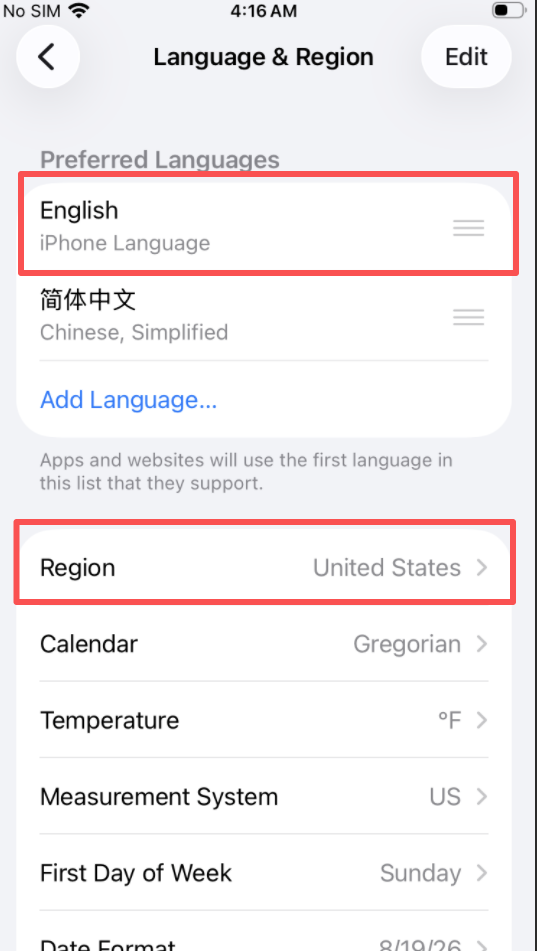
Set your phone's region to "United States" and adjust the system's preferred language to English. This is the fundamental operation for simulating a US user's device environment and can effectively reduce the risk of environment detection during registration.
3.2 Time Zone Settings
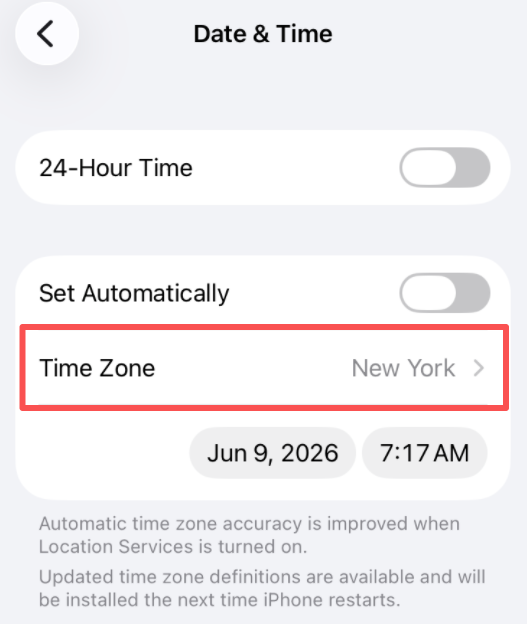
Change your device's time zone to New York time to match US local time standards. Time zone inconsistency is one of the common triggers for risk control systems — make sure the time zone matches the location of your network IP.
3.3 Disable Background App Refresh
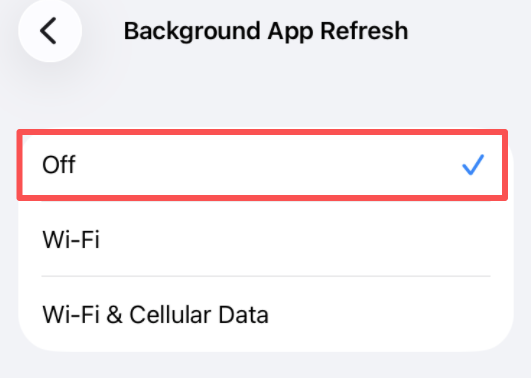
Turn off the "Background App Refresh" feature to prevent background processes from interfering with the registration flow and causing identification anomalies. Background activities may inadvertently expose the device's real information, so disabling this feature is a key step to ensuring a clean registration environment.
3.4 Verify IP Address
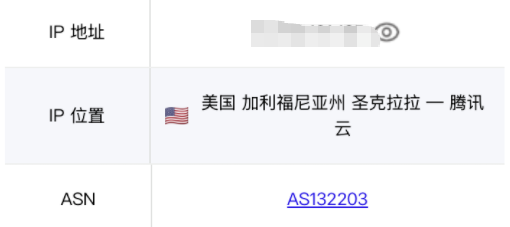
Before opening Cash App, make sure to confirm that your current network IP is located in the United States. You can use online tools such as ping0.cc to check your IP location. Only proceed once confirmed. The IP address is the first checkpoint of the risk control system — any non-US IP may lead to registration failure or restricted account functionality.
4. Detailed Registration Process
This tutorial uses email registration as an example (phone number registration is also supported). Follow these steps:
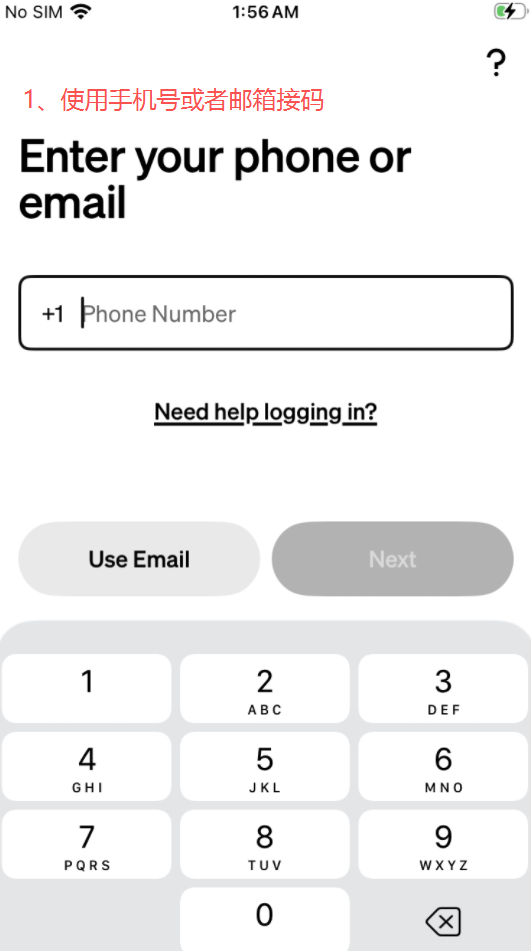
Step 1: Choose Registration Method
Open Cash App, select the "Email/Phone" login and registration entry, and switch to email registration mode if needed. Email registration is recommended as it is more convenient for international users to manage account information.
Step 2: Enter Date of Birth
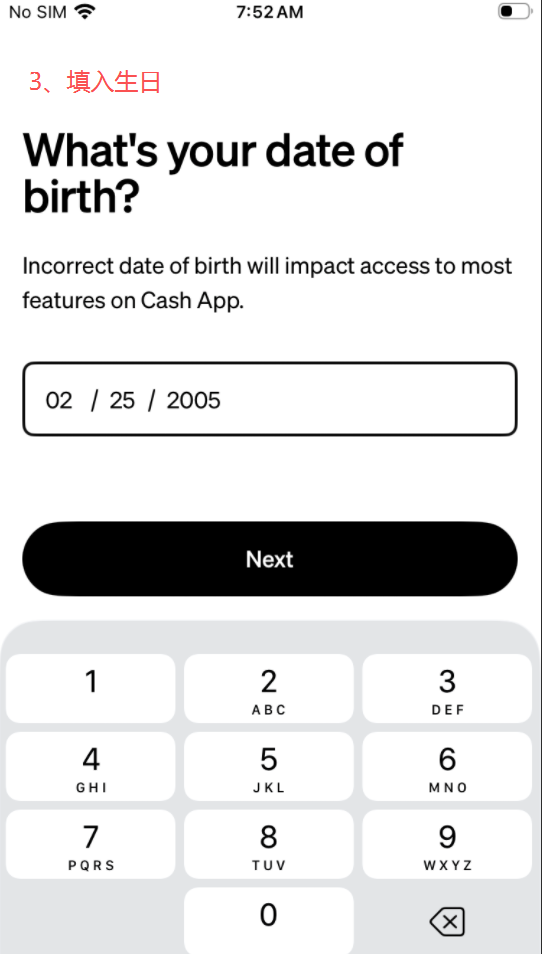
Enter your date of birth as prompted. The system determines account usage permissions based on age. Incorrect information will restrict most features, so please fill in truthfully.
Step 3: Enter Legal Name
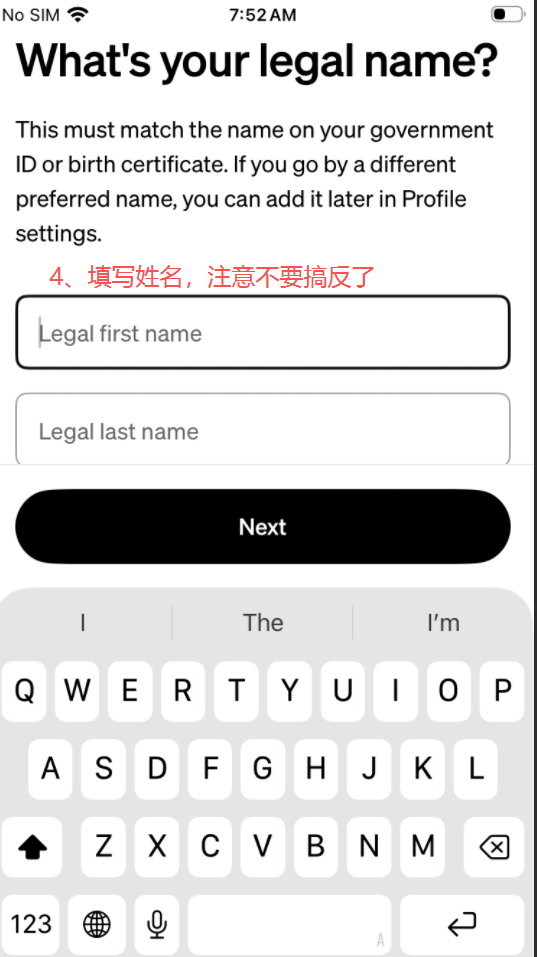
Fill in your legal first name and last name exactly as they appear on your identification documents — the order must not be reversed. "Legal first name" is your given name, and "Legal last name" is your surname. A nickname can be added later in your profile after registration is complete.
Step 4: Identity Verification
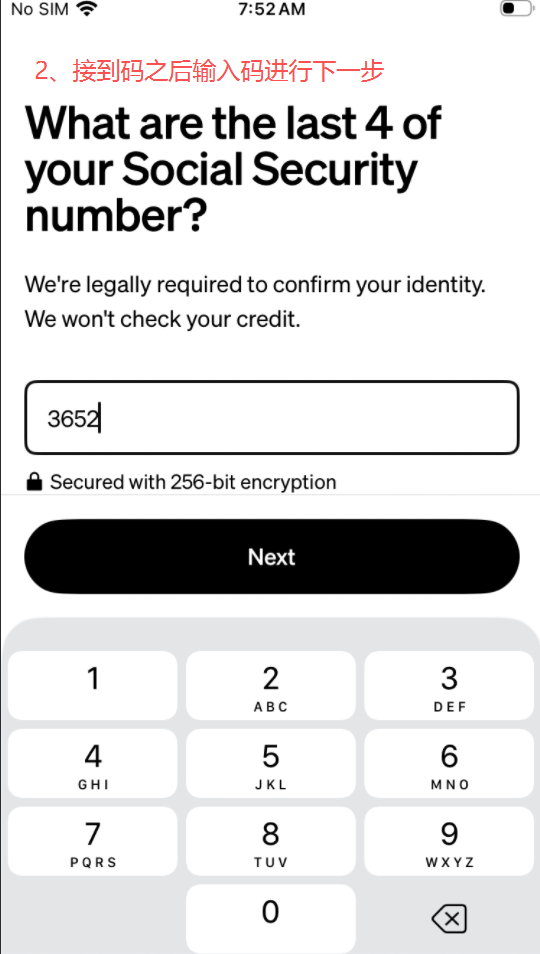
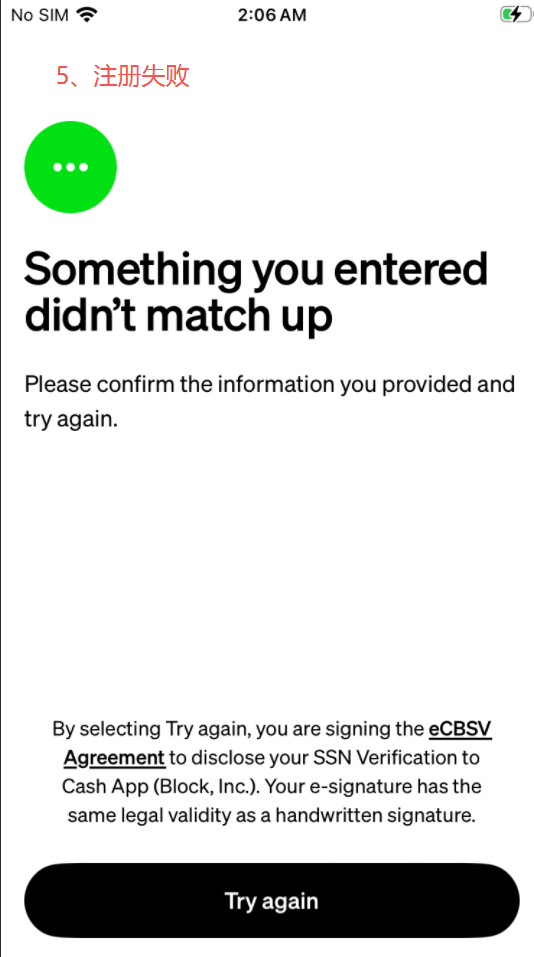
During registration, you will need to provide US personal information, SSN, and other details. All information must be truthful and match correctly. If the information does not match, an error prompt will appear — in that case, review your name, date of birth, identity details, correct them, and resubmit.
Step 5: Complete Registration
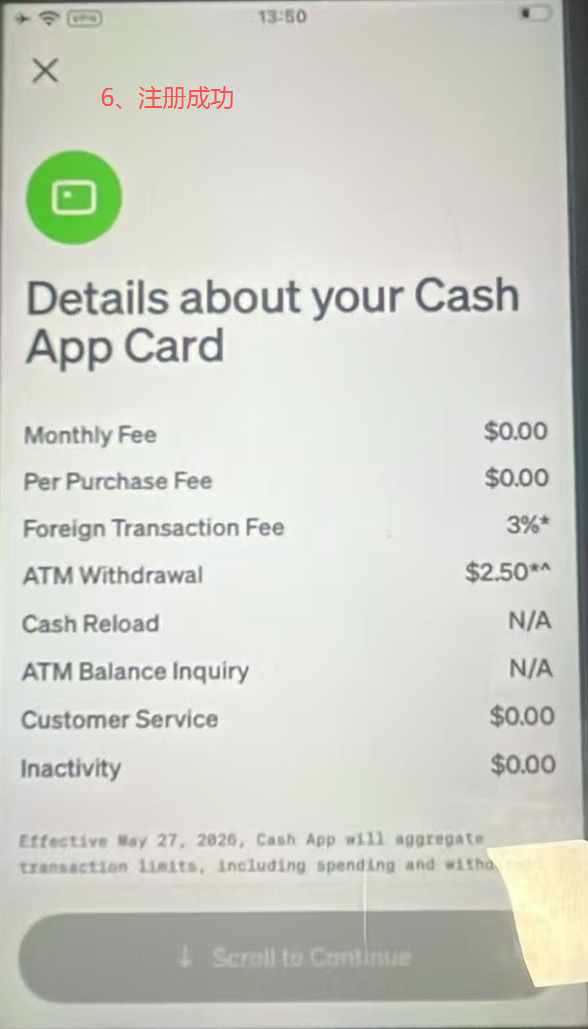
Once all information is verified, you can successfully log in to your Cash App account and view account cards, fees, transaction limits, and other related service details.
Supplementary Notes
- If you see an "Information Mismatch" prompt, double-check your name, date of birth, identity details, correct any errors, and resubmit.
- Cash App charges fees for foreign currency transactions, ATM withdrawals, and other services. You can view the complete fee schedule on the account details page after successful registration.
- After registration, it is recommended to maintain a stable device environment, avoid frequently switching IPs or modifying device settings, to keep your account in good standing.